The Speaking Of app icon: a white delete key and a Pumpkin Orange return key on a pale grey keyboard backdrop

Speaking Of…

Fewer keys. More screen.

A mini keyboard for iPhone. One slim row (tab, space, delete, return) instead of fifty letters and a third of your screen. It's especially good while you're dictating: the keys that help most are right there, and you can finally see what you just said.

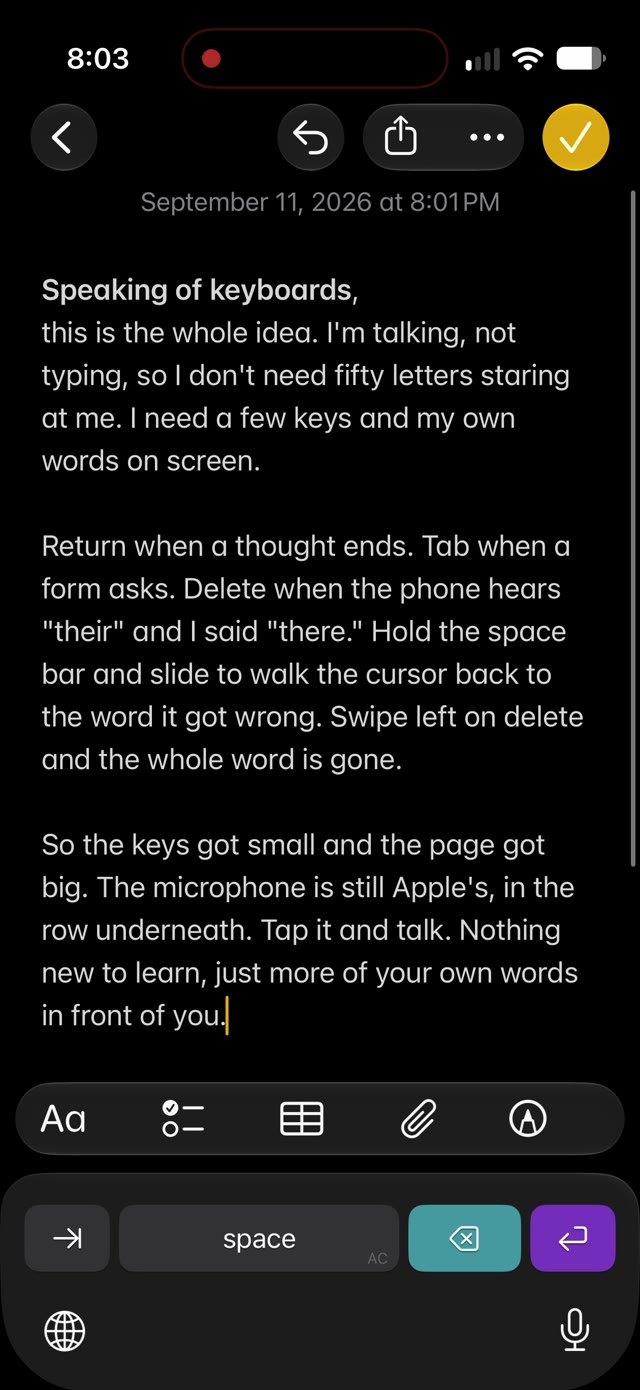
An iPhone Air in dark mode showing a note in Notes that reads Speaking of keyboards, this is the whole idea. I'm talking, not typing, so I don't need fifty letters staring at me. Under the note, the Speaking Of keys: tab, a blank space bar, a Splash Aqua delete key and a Grape Juice Purple return key. Under that, Apple's own row with the globe and a lit microphone.
Talking into Notes. The whole note stays on screen above four keys, with Apple's microphone right underneath.
Screen

Your screen, back

You're not typing. So why is a keyboard covering so much of your screen?

When you type, you watch your thumbs, and a full keyboard has earned its space. When you talk, you read every word back, looking for the one it misheard. That's when you need the page most, and it's exactly when a full keyboard hides the most of it.

Speaking Of trades fifty letters for one slim row. What's left is your text, with room to read it.

38%of an iPhone Air's screen under the standard keyboard
16%under Speaking Of, with the same row of Apple's buttons below
≈ 9more lines of your own words on screen

Keep both. One tap of the globe switches between them, instantly: Apple's for typing, this one for talking.

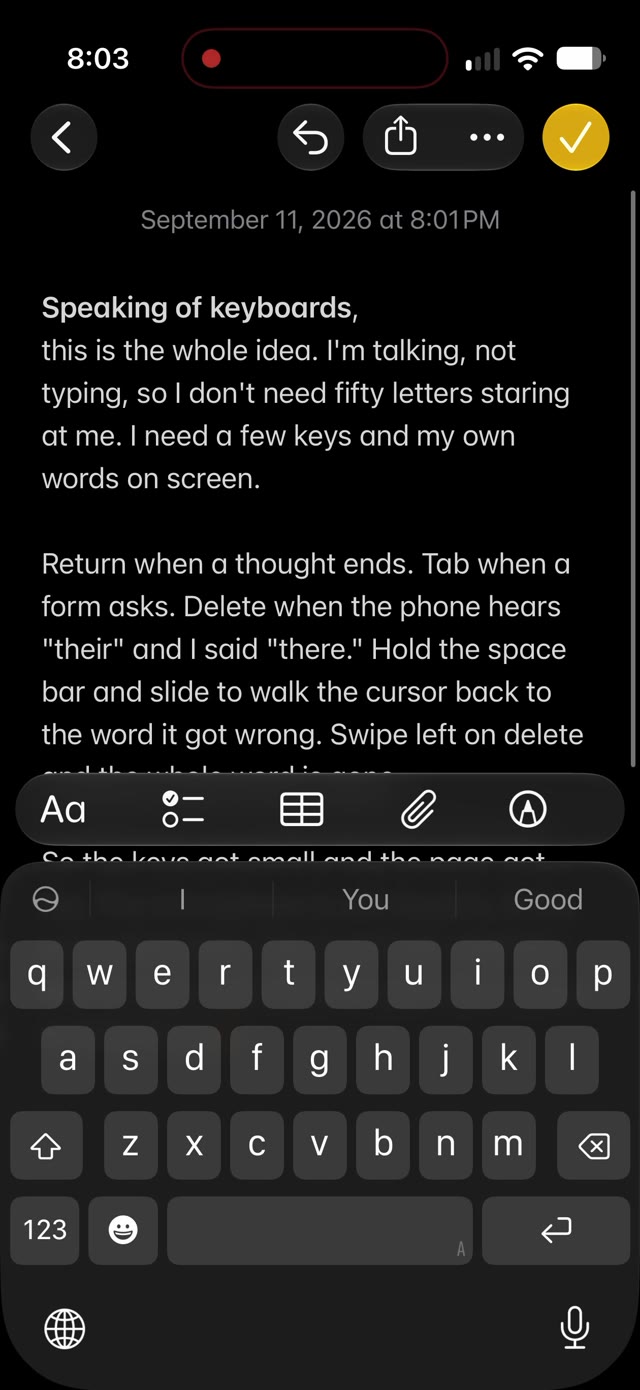
The standard keyboard: a note in Notes with letters, a suggestion row and Apple's buttons covering the bottom 38 percent of the screen. The note is cut off after its second paragraph.
38%
The standard keyboardThe note stops mid-paragraph.
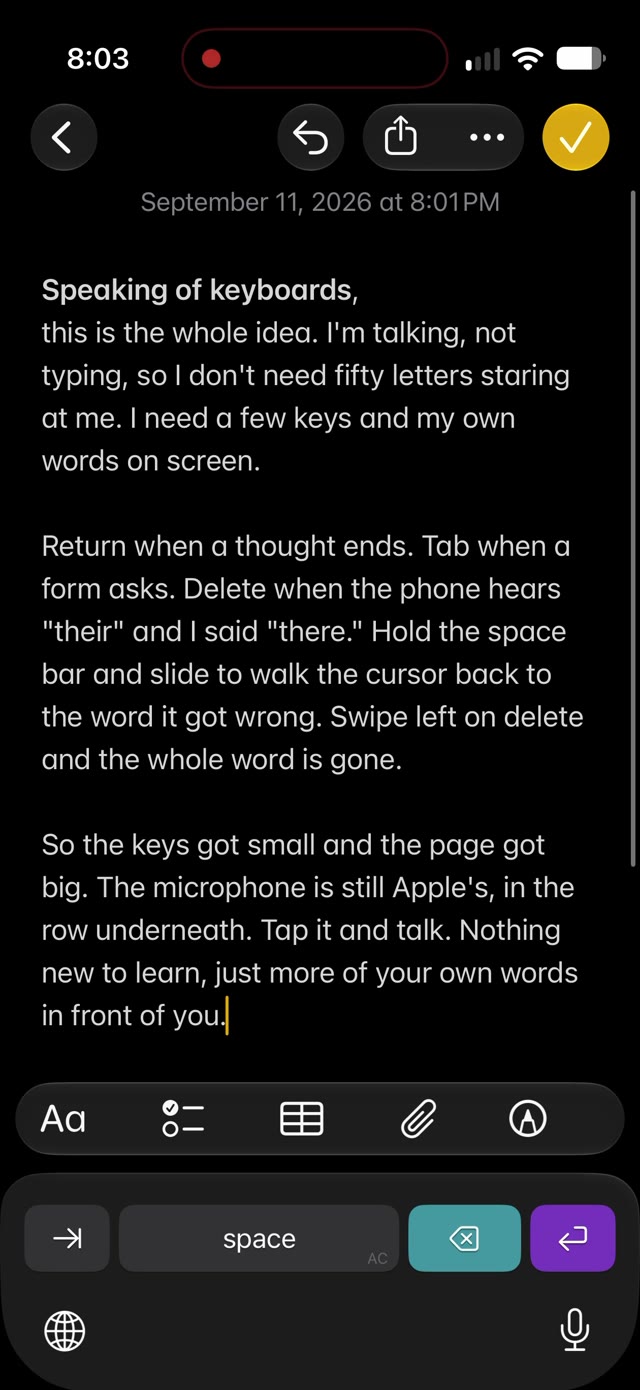
Speaking Of: the same note with four keys and Apple's buttons below. All three paragraphs are on screen.
16%
Speaking OfThe whole note, top to bottom.
Tour

A look around

Every picture here is a real screen from an iPhone Air.

A note in Notes with the Speaking Of keys underneath: tab, a space bar that reads space, a Splash Aqua delete key and a Grape Juice Purple return key, with Apple's globe and microphone on the row below. The whole note is readable.
The keys arrive. The space bar says hello.
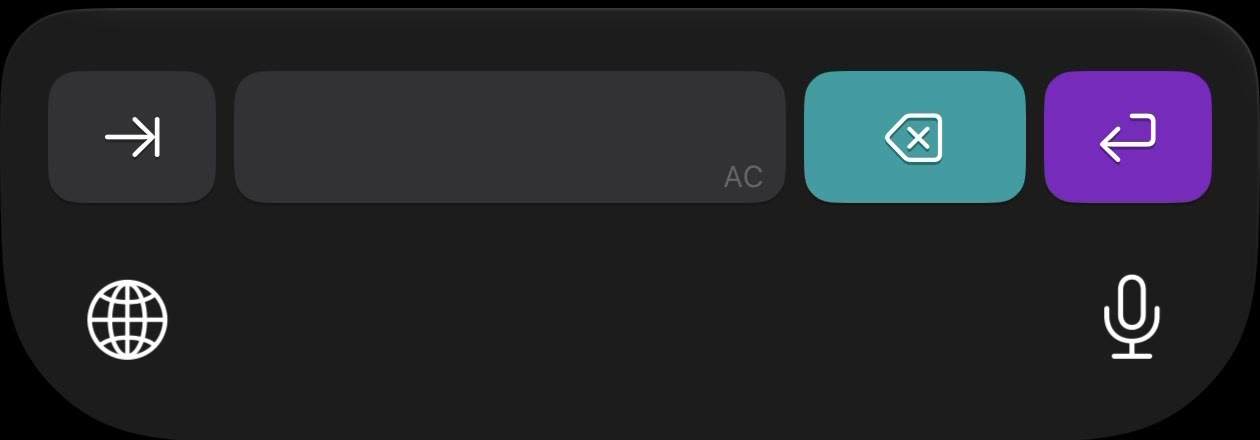
A close look at the keys: tab, a blank space bar, Splash Aqua delete and Grape Juice Purple return, and below them Apple's globe and microphone.
Four keys on top. Apple's globe and microphone below, where they've always been.
1 In any app

The keys

Tab, space, delete, return, and the rest of the screen is yours.

Sized and shaped to sit right beside the iPhone's own keyboard, in light and dark. The space bar says "space" when the keys arrive, then quietly lets the word go.

  • Keys
  • Tab next field
  • Space
  • Del
  • Rtn new line
  • Hold globe switch keyboards
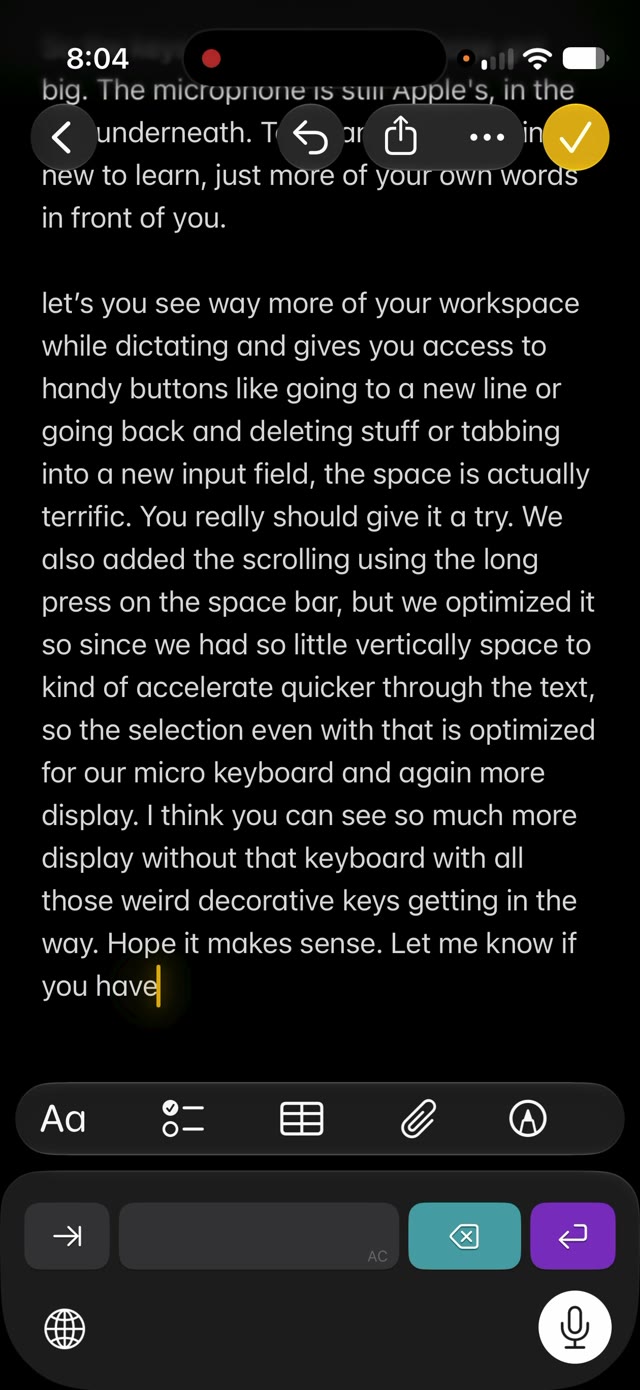
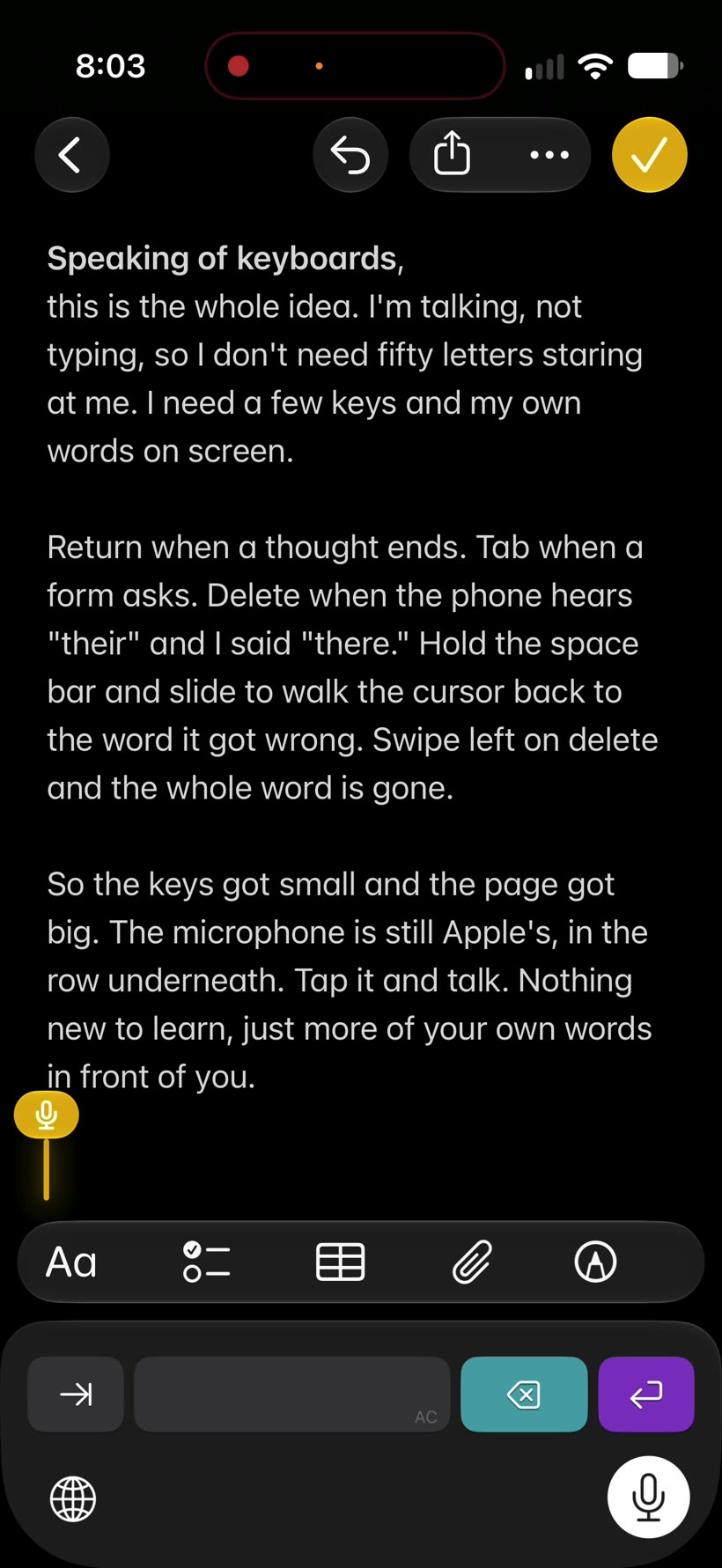
Notes mid-dictation: a long paragraph filling most of the screen, the Speaking Of keys underneath, and Apple's microphone lit in the row below.
Talking, with the keys right there.
2 While you dictate

Talk and tap at the same time

Dictation exactly as you already do it, with the keys that help most under your thumb.

Apple's microphone sits in the row directly below the keys. Tap it and talk, and your words land in whatever app you're in. Nothing new to learn.

Dictation will start a new line if you ask. But asking means stopping: dropping out of your sentence to give a command. Your thumb interrupts nothing. Fill in a form and you'll feel it: talk, tab, talk, tab, straight down the page.

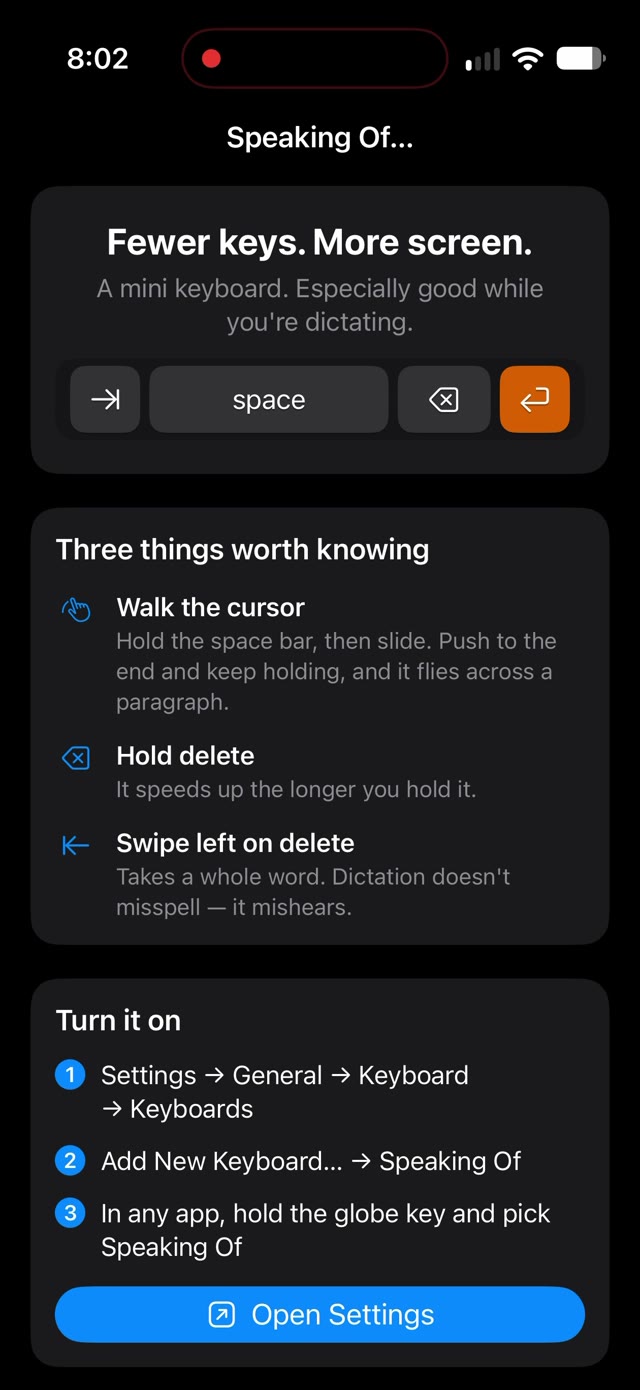
The Speaking Of app: Fewer keys. More screen. above the four keys, then a card called Three things worth knowing: Walk the cursor, Hold delete, Swipe left on delete.
The app shows the three things worth knowing.
3 On the keys

Fix it with your thumb

Dictation doesn't misspell, it mishears. So the keys are built for repair.

  • Walk the cursorHold the space bar, then slide. Push to the end and keep holding, and it flies across a paragraph.
  • Hold deleteIt speeds up the longer you hold it.
  • Swipe left on deleteTakes a whole word. Keep going and it takes the next one.
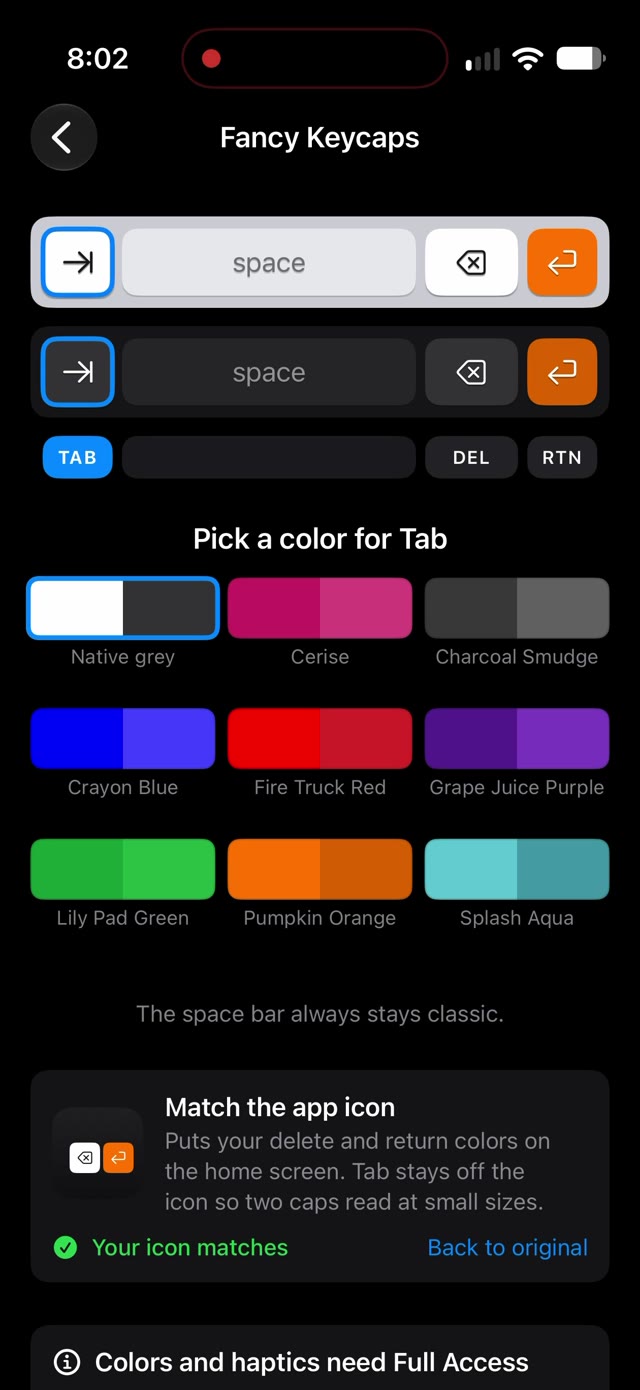
Fancy Keycaps: a daylight keyboard and a night keyboard, the tab key ringed on both, the legend row TAB, DEL, RTN, and Pick a color for Tab over nine swatches, each split day and night: Native grey, Cerise, Charcoal Smudge, Crayon Blue, Fire Truck Red, Grape Juice Purple, Lily Pad Green, Pumpkin Orange, Splash Aqua.
Day on top, night below.
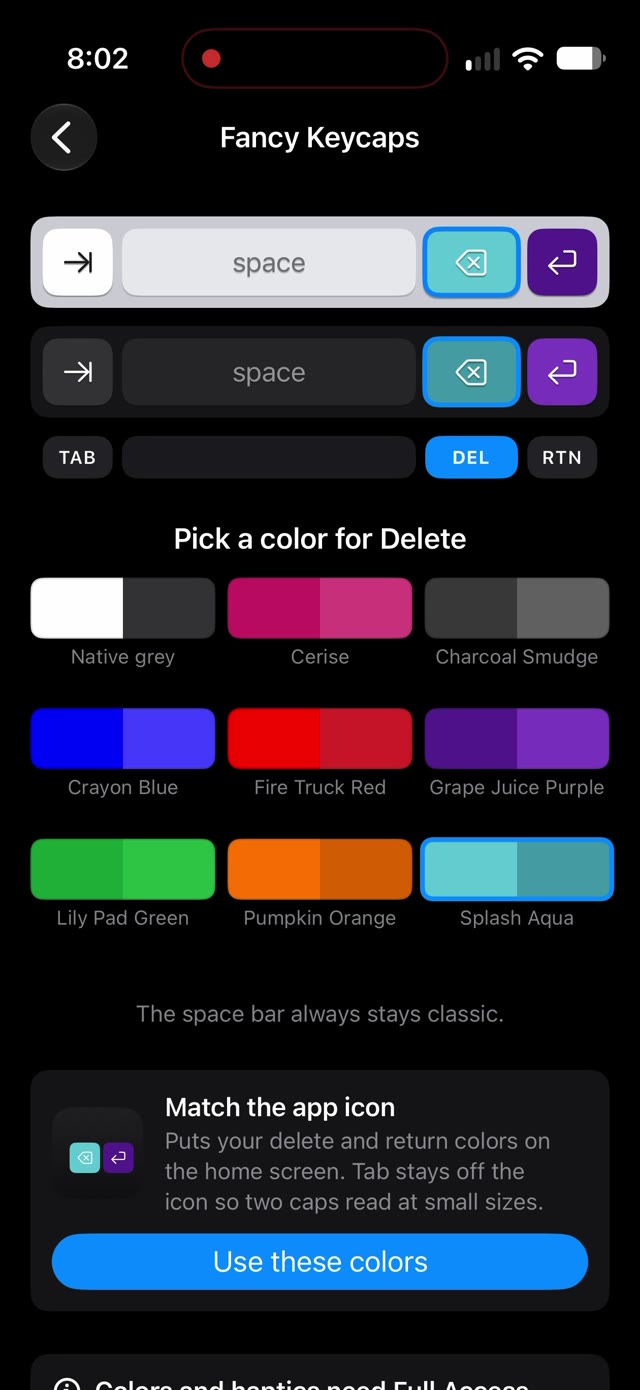
Fancy Keycaps with delete in Splash Aqua and return in Grape Juice Purple on both little keyboards.
Delete in Splash Aqua, return in Grape Juice Purple.
4 In the app

Fancy Keycaps

Dress the tab, delete and return keys in any of eight colours. The space bar stays classic.

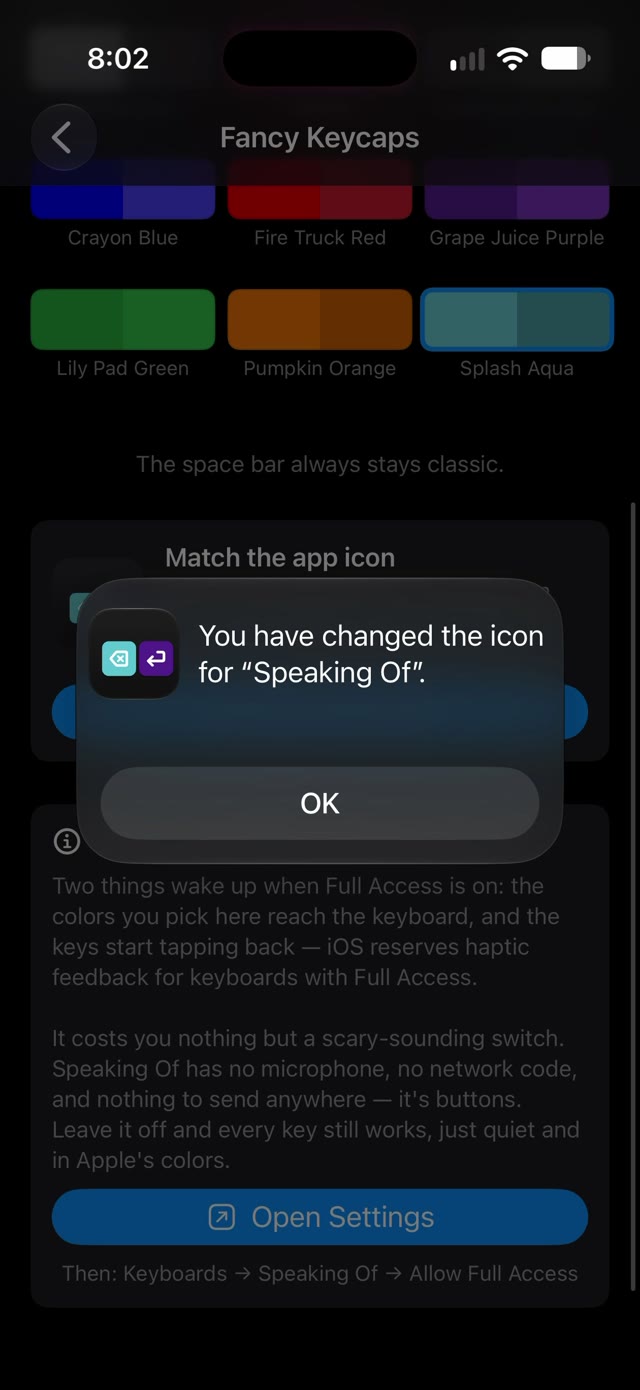
Tap the key you want to dress, then pick a swatch. Every colour is mixed twice, so it looks right in daylight and at night, and you see both before you choose. Native grey puts a key back the way it came.

Fancy Keycaps behind an iPhone alert: You have changed the icon for Speaking Of, with an OK button.
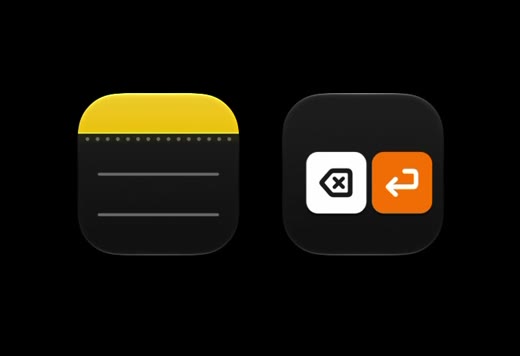
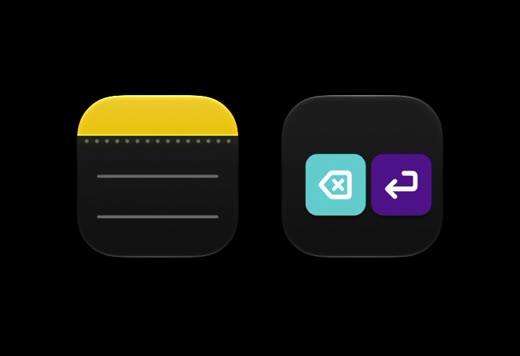
One tap, and the icon follows.
The home screen before: the Speaking Of icon with a white delete key and a Pumpkin Orange return key, beside Notes.
Before.
The home screen after: the Speaking Of icon with a Splash Aqua delete key and a Grape Juice Purple return key, beside Notes.
After.
5 In Fancy Keycaps

Match the app icon

Your delete and return colours, on your home screen.

Tap Use these colors and the icon changes to match your keys, with its own light and dark look. Back to original is always one tap away.

Help

Setup and support

Two minutes to turn it on, then it's there in every app.

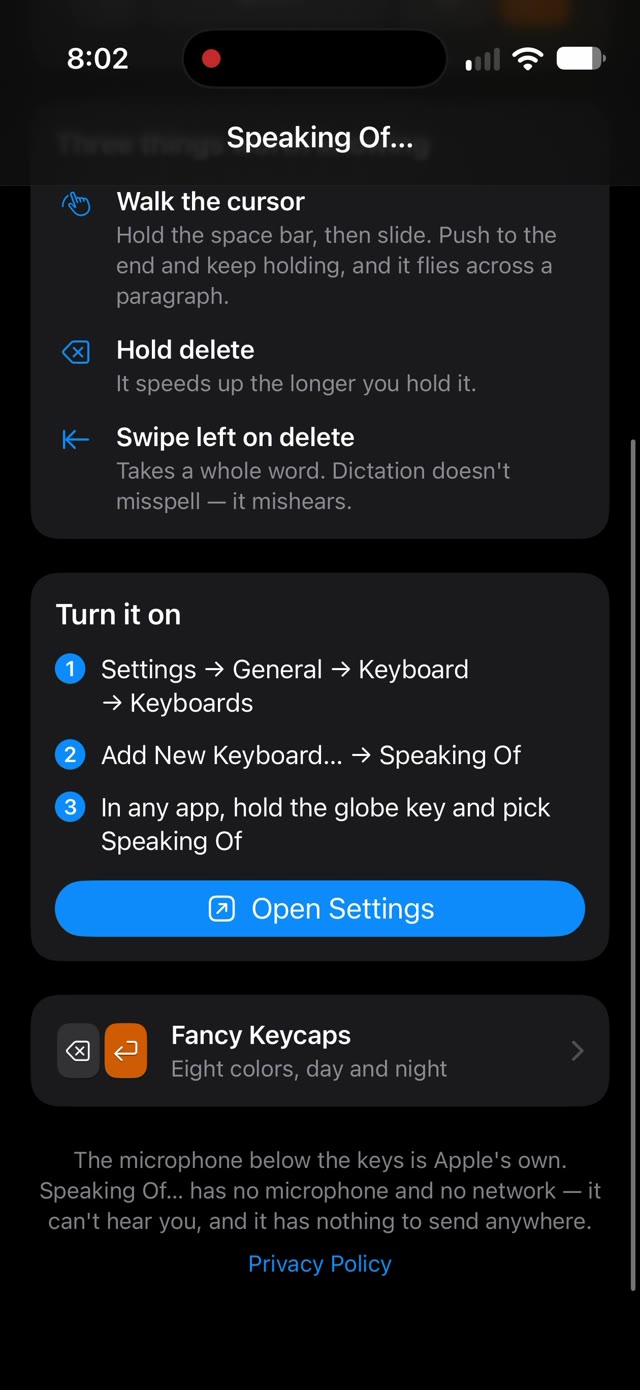
The Speaking Of app: Turn it on, with three steps and an Open Settings button, the Fancy Keycaps door, and a note that the microphone below the keys is Apple's own.
The app walks you through it, with a button straight to Settings.
↩ Once, and done

Turn it on

  1. 1
    Settings → General → Keyboard → Keyboards
  2. 2
    Add New Keyboard… → Speaking Of
  3. 3
    In any app, hold the globe key and pick Speaking OfHold it again to go back to the standard keyboard whenever you're typing.

Runs on iPhone with iOS 26 or later, with any dictation language your iPhone supports. The app itself is in English.

?Where's the microphone?

It's Apple's, in the row just below the keys, bottom right. That row appears under every keyboard, and the microphone shows up there when Dictation is on.

To turn it on, open Settings → General → Keyboard and switch on Dictation. The first time, your iPhone may take a moment to download what it needs for your language.

?My colours don't show on the keys

The keyboard picks up your Fancy Keycaps colours through Allow Full Access, which iOS keeps behind a switch:

Settings → General → Keyboard → Keyboards → Speaking Of → Allow Full Access

The next time the keys come up, they wear your colours. iOS shows a strong warning on that switch for every keyboard. Here's exactly what it does for this one.

?I'd like to feel the keys

The click sound follows your iPhone's own setting: Settings → Sounds & Haptics → Keyboard Feedback.

The little tap under your thumb comes with Allow Full Access, the same switch as the colours. With it on, each move feels different: a light tick for a key, a heavier one when a whole word goes, a soft one when the space bar starts walking the cursor.

?Sometimes Apple's keyboard comes back on its own

That's iOS looking after you. Password fields and a few other secure fields always use Apple's own keyboard, and some apps choose it for all their fields. The moment you leave, your keys come back.

?What if I need to type a word?

Tap the globe and Apple's full keyboard is right there. Tap it again and you're back to four keys. Keep both turned on and switch as often as you like.

?Taking it off

Settings → General → Keyboard → Keyboards → Edit, then remove Speaking Of. Deleting the app removes the keyboard too.

Still stuck? Write to us.

Tell us your iPhone model and iOS version. A screenshot helps a lot.

support@speakingofkeyboard.app
Privacy

It can't hear you

A keyboard sees everything you write, so it should explain itself. This one is short.

The microphone

Apple's, not ours

When you dictate, you're using Apple's own dictation, in the row below the keys. iOS keeps the microphone away from keyboards, and Speaking Of leaves it that way. We never see what you say.

The network

Stays on your phone

No networking code at all, so what you write stays on your iPhone. No account, no analytics, no ads, no crash reporter.

Full Access

Two cosmetic things

Turn it on and your colours reach the keyboard, and the keys tap back under your thumb. Leave it off and every key still works, quiet and in Apple's colours.

The only thing saved is the colours you pick, on your own phone. The App Store privacy label reads Data Not Collected. Read the full privacy policy.

It's buttons. That's the whole app.